
Web Team blogT4 upgrade: What to expect as content creators

The holidays may be over...
...but we're here to deliver the present you didn't know you needed - a t4 upgrade!
While tongue may have been firmly in cheek there, we hope you'll find the new version an improvement.
As content creators, some of the updates won't be visible to us, such as security and performance enhancements, but below are a few things we liked when testing the latest version.
A new 'Preview' button
In previous versions, we had to select the blue 'Actions' button next to a piece of content to make the 'Preview' option visible.
The latest version now has a 'Preview' button at the top of the section—a much more intuitive place, if you ask us!
Note: you'll see a 'Direct edit' button next to 'Preview'. This feature hasn't been tested by us for use on our site, so please ignore this option.

Site structure filter
Looking for a specific section and can't remember where it is in the site structure? You can now filter in a similar way to how you currently can within a section.
The new filter option is located in the top right of the 'Site structure' area. In the example below we've filtered to find any section with 'law clinic' in the name.
A handy time saver!

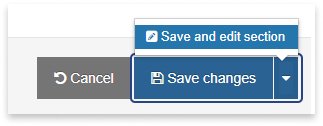
Save & edit section
Consider the scenario: you need to make any changes to the details of a section, such as the section name or status. When you save these, you're then taken out of the section and to the top of the site structure again. If you want to continue editing any content within that section, you then need to navigate your way back to it.
A great time-saver is the new 'Save and edit section' option. It's located in the same place as the 'Save' button in previous versions, but you now have an extra option more suited to the different tasks you might be performing.
Content status
You can now see the status of a piece of content when editing it - whether it's currently approved, pending or inactive.
Subtle but useful!
You'll see this in the top right corner of the screenshot below, where 'Approved' is visible in green.

Speed improvements & bug fixes
Overall you should notice that the new version of t4 performs better and feels a bit slicker. There's a slight change to the look and feel of the traffic light colours of the site structure.
There are also fixes to bugs, most notably when using the media library search function.